

Settings
General
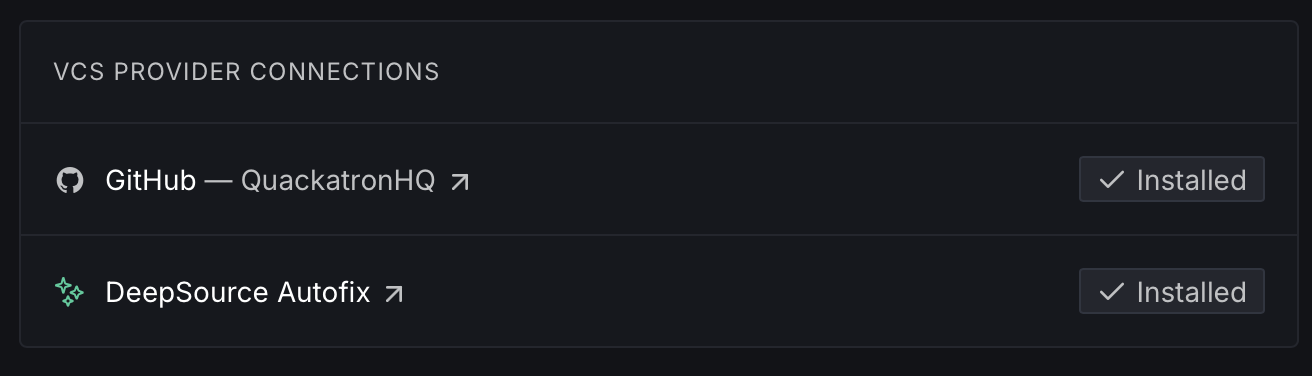
VCS connections
View and manage the VCS provider connections linked to your team. This shows all installed connections (e.g., GitHub, DeepSource Autofix™) and their status.
Preferences
Configure team-wide preferences that control how DeepSource behaves across all repositories in your team.
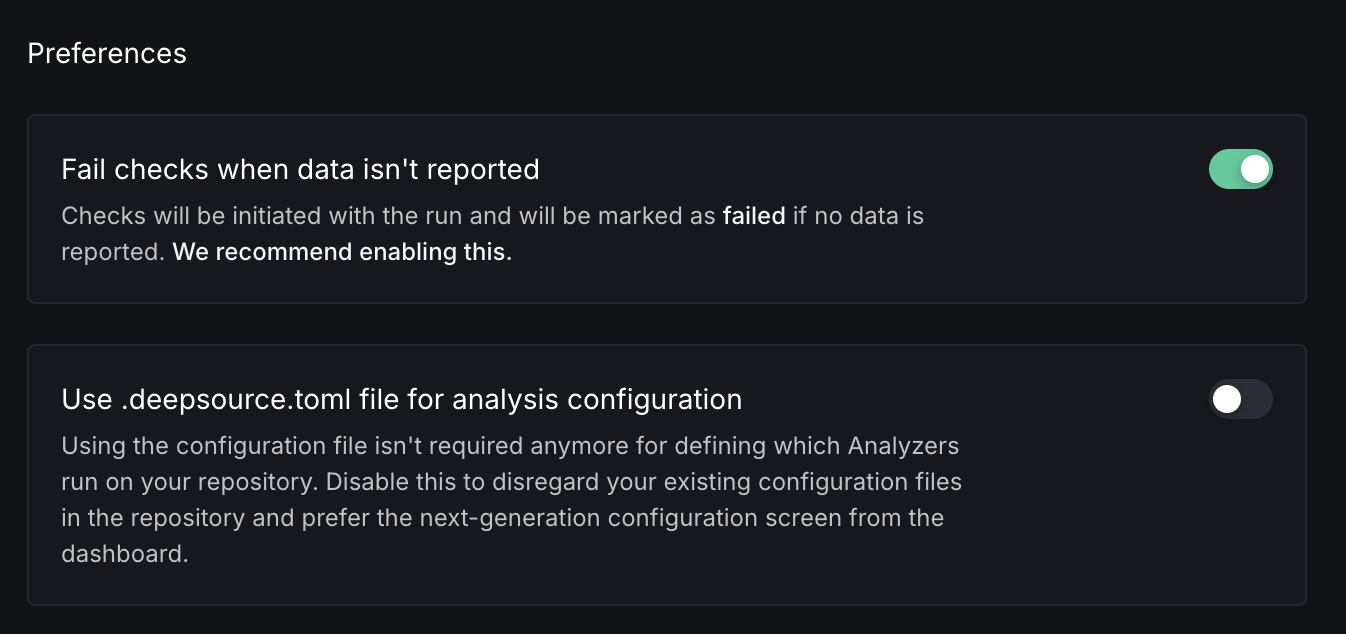
- Fail checks when data isn't reported — When enabled, checks that are initiated with a run are marked as failed if no data is reported back. This is recommended to keep enabled so you're alerted when analysis doesn't complete as expected.
- Use .deepsource.toml file for analysis configuration — Controls whether DeepSource reads analyzer configuration from the
.deepsource.tomlfile in the repository. When disabled, analysis configuration is managed through the dashboard instead.
Advanced settings
Access advanced options such as deleting a team. Selecting this option permanently removes your team and all its contents from DeepSource.
Billing
Billing and Usage settings are not available on self-hosted deployments.
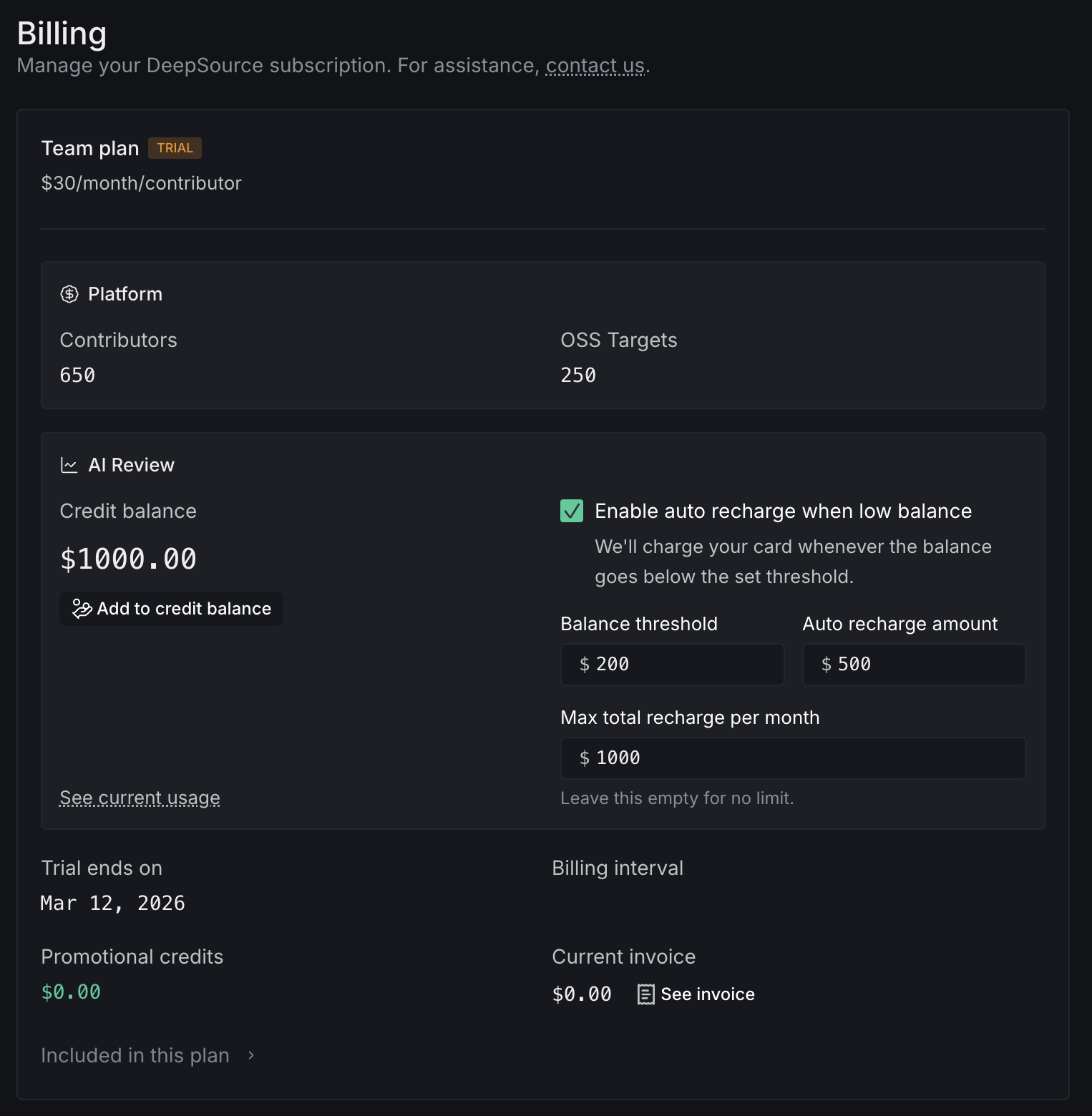
DeepSource bills per active committer — team members who push code to analyzed repositories. Contributors (the role) are not counted toward billing. Seats adjust automatically as members join or leave.
Plans
DeepSource offers four plans:
- Individual — Free. For individual users with public and private repos.
- Open Source — Free. For teams working on public repositories.
- Team — $30/month per contributor. Full feature set with bundled AI credits.
- Enterprise — Custom pricing. Adds SSO, self-hosted deployment, and Priority Support with SLA.
For a full feature comparison, see Plans.
AI credits
Paid plans include bundled credits for AI features, pooled across the entire team. The Team plan includes $10/month or $100/year per contributor; Enterprise plans have custom AI credit allocations. Unused credits roll over. When credits run out, overage billing starts automatically.
Individual and Open Source users can add a payment method to use AI features at metered rates.
For details on credit pooling, rollover, auto top-up, and AI Review pricing, see AI Credits.
SCA add-on
Software Composition Analysis (SCA) is a paid add-on billed per target — each target is a manifest file with an optional lock file. It's available on Team and Enterprise plans, with 3 targets included free. Additional targets are $8/target/month or $96/target/year.
For more on how SCA works, see Dependencies. For pricing details, see SCA billing.
Free trial
Teams on the Open Source plan can try the Team plan free for 14 days — no credit card required. Each workspace can activate the trial once.
For full trial details, see Free Trial.
View usage
You can view the usage details of your current plan from the billing section. This shows contributors, commits analyzed, code formatter runs, and Autofix runs. For a detailed breakdown of AI Review spend, lines of code metrics, and SCA targets, see Usage.
Edit billing information
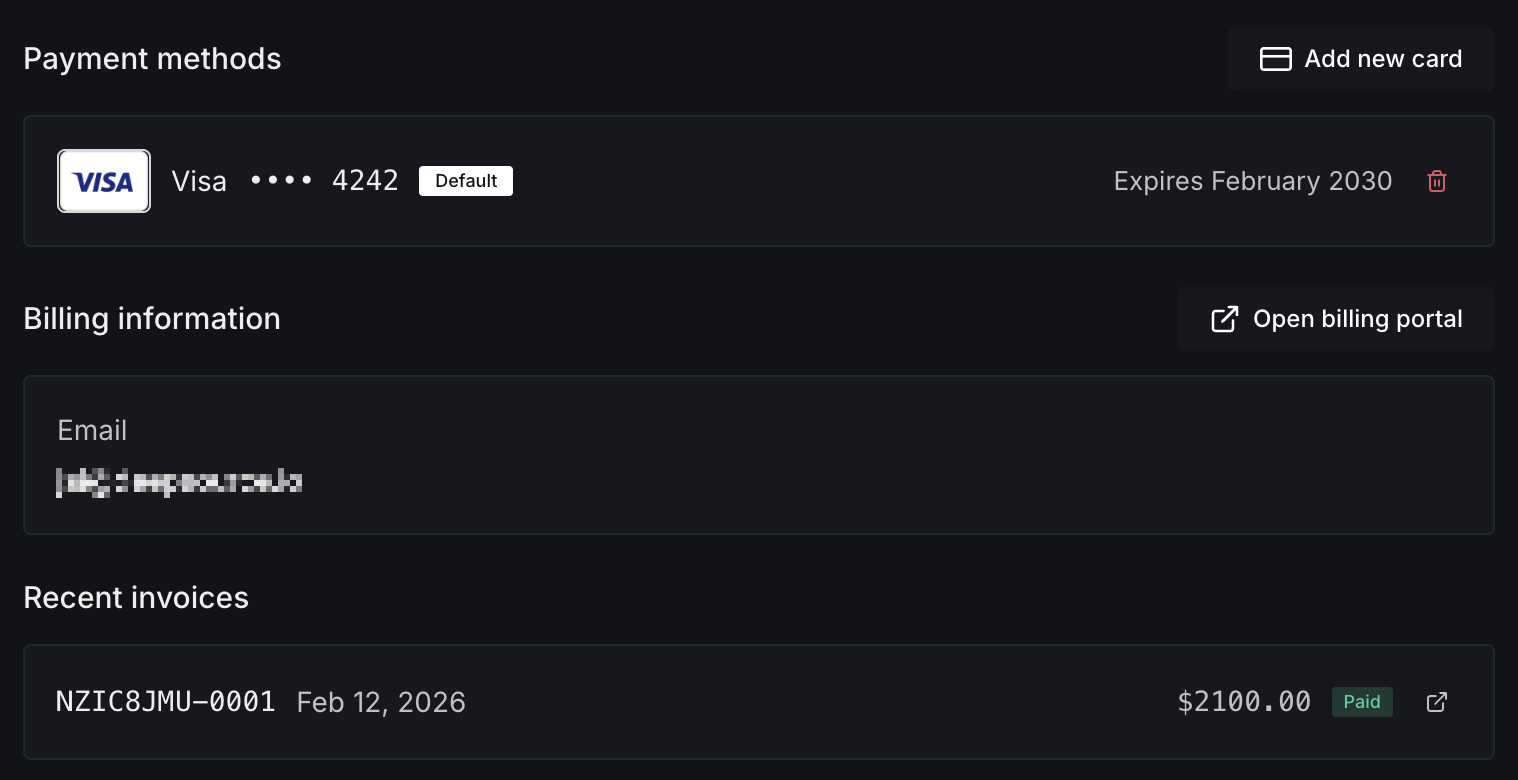
Update your billing email, billing address, and credit card from the billing section.
For the Enterprise plan, billing is managed manually. If you need to make changes to your plan, contact DeepSource support.
Usage
Track AI Review spend, lines of code analyzed and fixed, and SCA target usage from Settings > Usage.
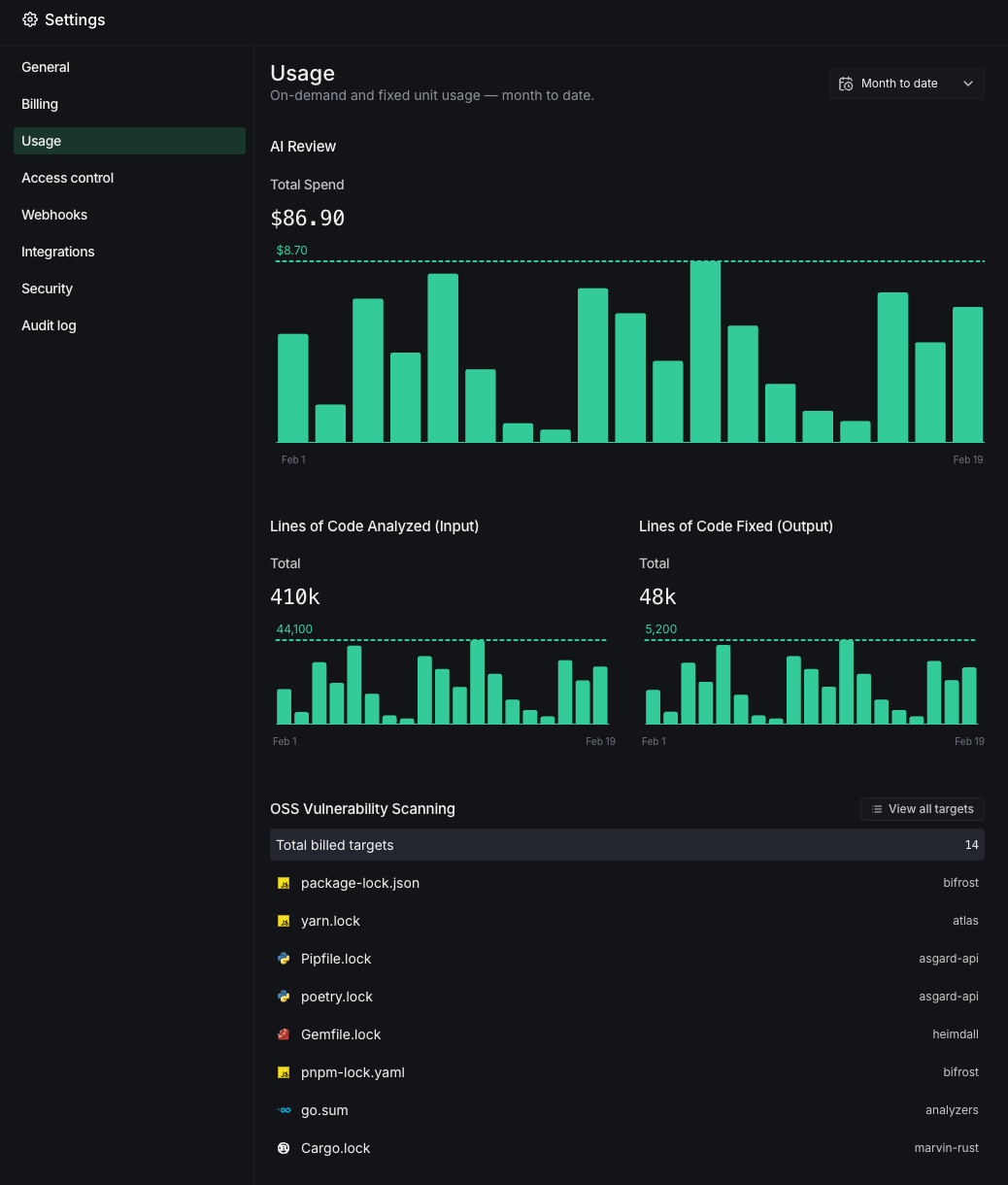
Use the date filter to adjust the reporting period: Week to date, Month to date (default), Last 7 days, Last 14 days, or Last 30 days.
AI Review spend
Total AI Review spend in USD for the selected period, with a daily spending chart.
For details on credit allocation and pricing, see AI credits.
Lines of code analyzed
Total input lines of code analyzed for the selected period, with a daily trend chart.
Lines of code fixed
Total lines of code fixed by DeepSource for the selected period, with a daily trend chart.
OSS vulnerability scanning
All activated SCA targets with the billed target count. Each entry shows the lock file path and repository.
Click View all targets to see a paginated list of all SCA targets across your team.
For more on SCA targets and pricing, see SCA billing and Dependencies.
Access control
The Access Control settings let you manage permissions for your team, configure provider syncing, and control Autofix AI access. Navigate to Settings > Access Control in your team dashboard.
Access permissions
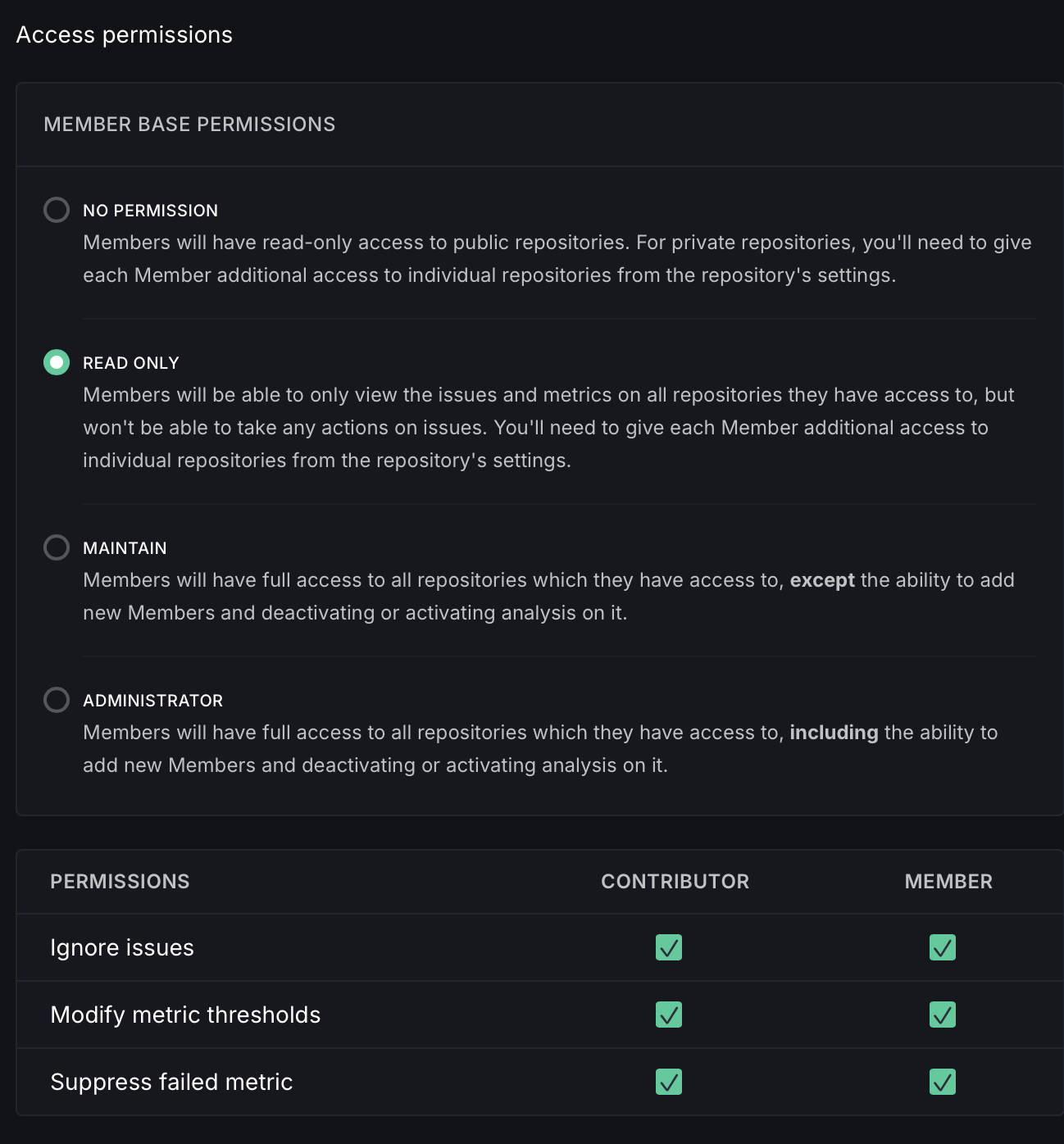
The Access permissions section controls what level of access team members have by default across all repositories, and what actions contributors and members can perform.
Member base permissions
Base permissions apply to all members of a team when accessing any of the team's repositories. Choose from:
- No Permission — Members have read-only access to public repositories. For private repositories, you need to grant access to individual repositories from the repository's settings.
- Read Only — Members can view issues and metrics on all repositories they have access to, but cannot take any actions. You need to grant additional access to individual repositories from the repository's settings.
- Maintain — Members have full access to all repositories they have access to, except the ability to add new members and deactivating or activating analysis on it.
- Administrator — Members have full access to all repositories they have access to, including the ability to add new members and deactivating or activating analysis on it.
For a newly added team, the default repository permission on DeepSource is set to the same value configured on GitHub. For other VCS providers, team members have Maintain permissions by default.
For open source repositories, all members (and contributors) have write permissions regardless of the base permissions setting.
Granular permissions
The bottom of the Access permissions section lets you control specific actions for Contributors and Members:
| Permission | Description |
|---|---|
| Ignore issues | Allow contributors or members to ignore issues on repositories |
| Modify metric thresholds | Allow contributors or members to change metric threshold values |
| Suppress failed metric | Allow contributors or members to suppress failed metrics |
Each permission can be independently toggled for Contributors and Members.
Repository permission levels
People with admin permissions can manage access levels for individuals on team-owned repositories. In order of least to most access:
- Read-only — View the dashboard without modifying anything
- Write — Push code and modify settings
- Admin — Full access including adding or removing users
| Action | Admin | Write | Read-only |
|---|---|---|---|
| View issues | ✓ | ✓ | ✓ |
| View past runs | ✓ | ✓ | ✓ |
| View metrics | ✓ | ✓ | ✓ |
| View overview widgets | ✓ | ✓ | ✓ |
| Customize overview widgets | ✓ | ✓ | |
| Install Autofix App | ✓ | ✓ | |
| Create Autofixes | ✓ | ✓ | |
| Can view DSN | ✓ | ✓ | |
| Generate SSH key-pair | ✓ | ✓ | |
| Change default analysis branch | ✓ | ✓ | |
| Change issue types to report | ✓ | ✓ | |
| Change issue types to block PRs on | ✓ | ✓ | |
| Deactivate analysis on repository | ✓ | ✓ | |
| Add/remove members | ✓ | ||
| Update role of existing members | ✓ |
Permission levels for teams
Teams have three role levels:
- Administrators — Full administrative access. Can manage billing, add or remove team members, and change roles.
- Members — Can activate analysis on new repositories. This is the default role.
- Contributors — No team-level access. Adding a contributor does not count toward your committer billing on the paid plan.
| Team Action | Administrator | Member | Contributor |
|---|---|---|---|
| Change plan (Pricing) | ✓ | ||
| Manage billing | ✓ | ||
| Update billing details | ✓ | ||
| Manage team members | ✓ | ||
| View Access Control Dashboard | ✓ | ||
| Delete team account | ✓ | ||
| Set granular ignore permissions | ✓ | ||
| Activate analysis on repositories | ✓ | ✓ | |
| Sync list of repositories from VCS | ✓ | ✓ |
Provider permissions
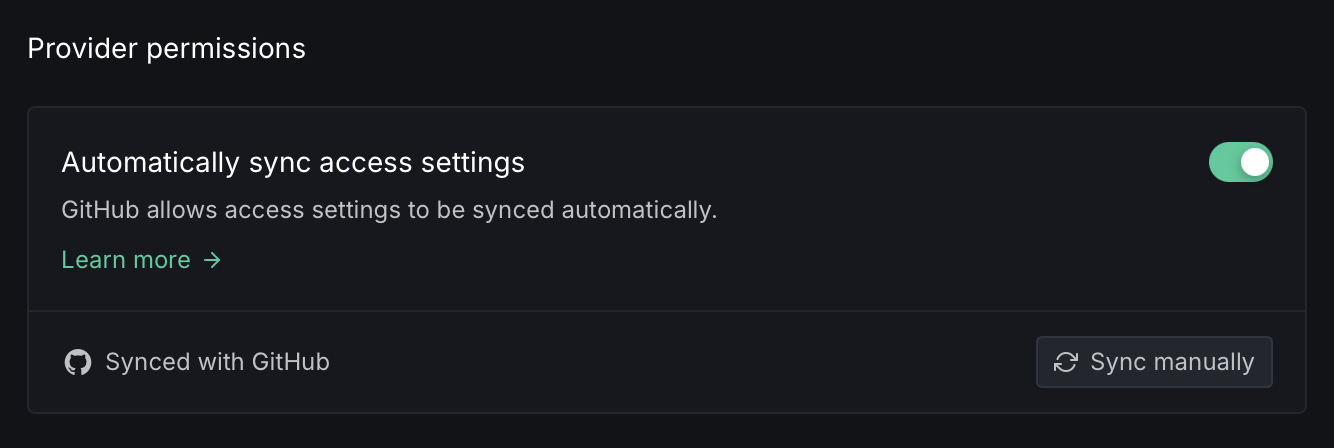
The Provider permissions section manages how access settings are synced between your VCS provider (GitHub, GitLab, or Bitbucket) and DeepSource.
Automatic sync
Toggle Automatically sync access settings to keep permissions in sync with your VCS provider. When enabled (currently available for GitHub):
- Removing an organization member on GitHub also removes them from the DeepSource team
- Adding a new team member on DeepSource who is also a member of your GitHub organization automatically adds them as a collaborator on all repositories with the same permission level
- Changes to repository collaborator permissions on GitHub are replicated on DeepSource
When a user signs up on DeepSource via GitHub OAuth, they are automatically added to DeepSource teams with the same role they have on the corresponding GitHub organizations.
Manual sync
Click Sync manually to trigger a one-time sync of access settings from your VCS provider. This updates roles and permissions on DeepSource to match the current state on GitHub, GitLab, or Bitbucket.
Webhooks
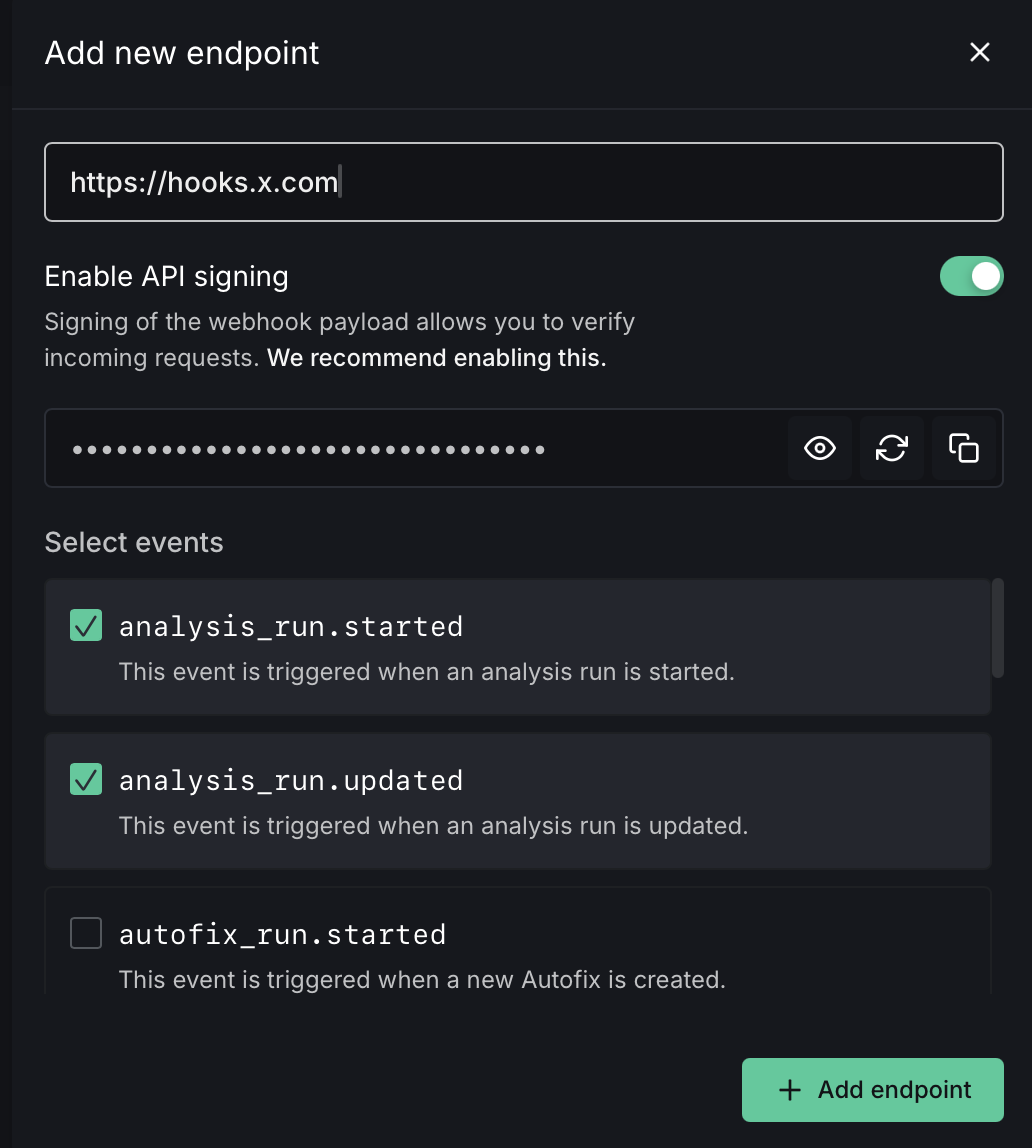
DeepSource's webhooks let you trigger reactions in response to specific events in your account. Configure an endpoint URL to receive POST requests from DeepSource whenever an event is triggered. You can enable API signing for an extra layer of security by including an HMAC signature of the payload.
To configure webhooks, click Add new endpoint and provide the endpoint URL, webhook secret, and one or more events to trigger on.
Webhooks are only available for organization accounts.
Integrations
Manage third-party integrations for your workspace.
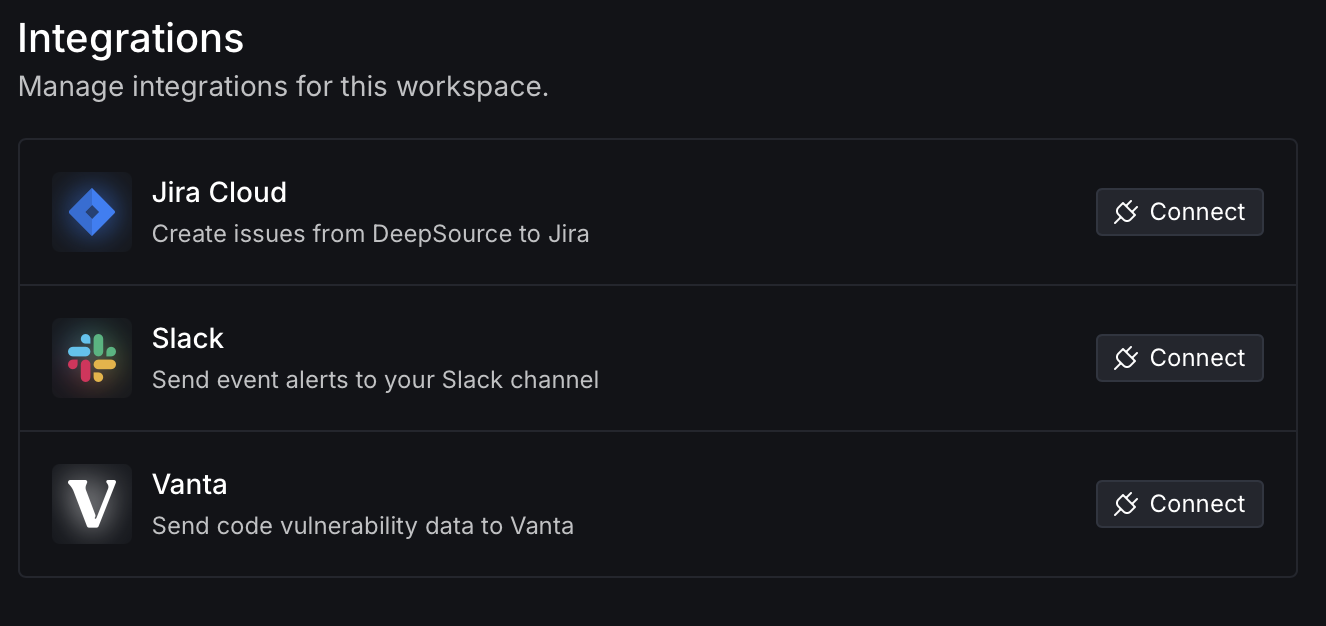
Jira Cloud
Create issues from DeepSource directly in Jira. When connected, you can create Jira issues for any code health issues detected by DeepSource.
Slack
Send event alerts to your Slack channel. When enabled, you'll receive notifications about new issues, resolved issues, Autofix activity, and repository activation changes.
Vanta
Send code vulnerability data to Vanta for compliance and security monitoring.
Audit log
Track activity and changes in your team. The audit log records all team-level events such as member additions, role changes, and configuration updates.
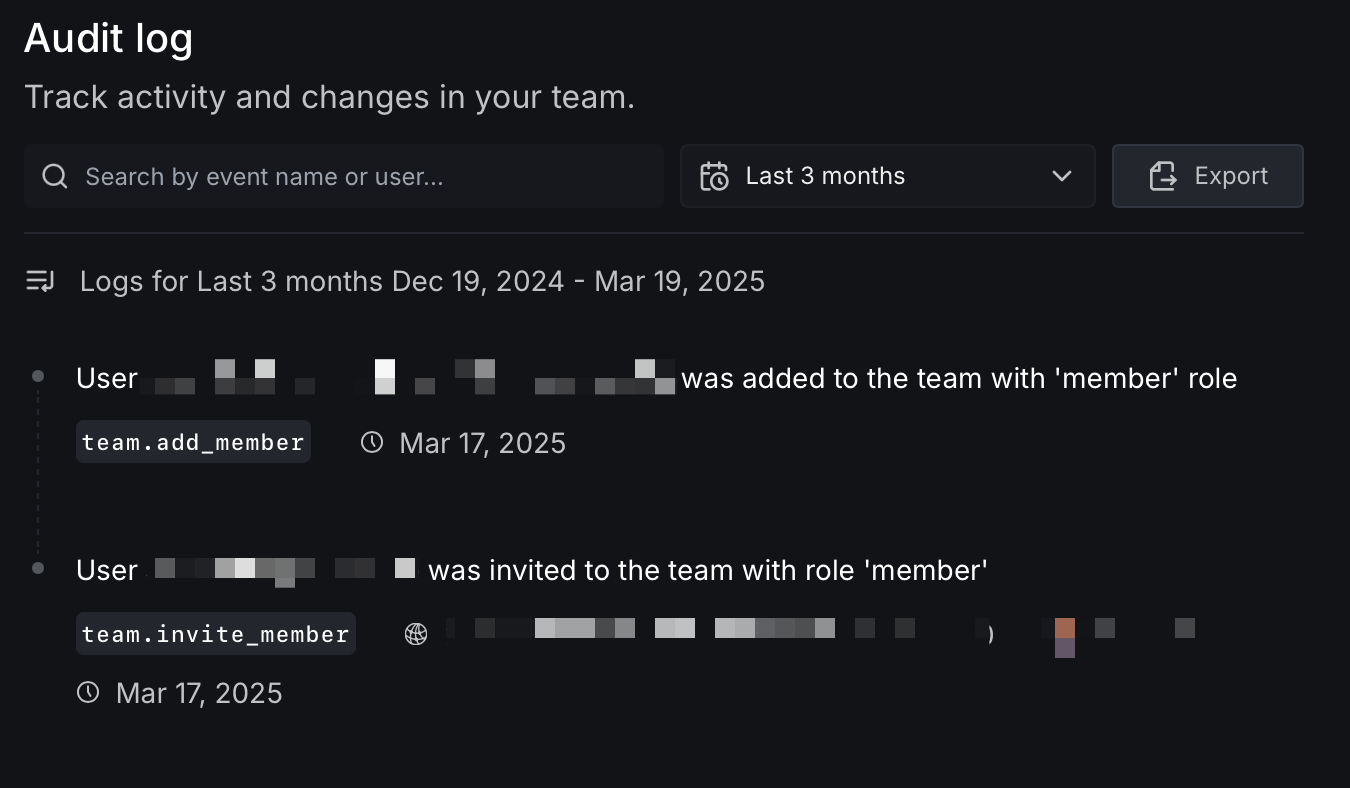
You can search by event name or user, filter by time period, and export the log for external review.
Security
SAML Single Sign-On
Set up SAML 2.0-based Single Sign-On (SSO) for your team.
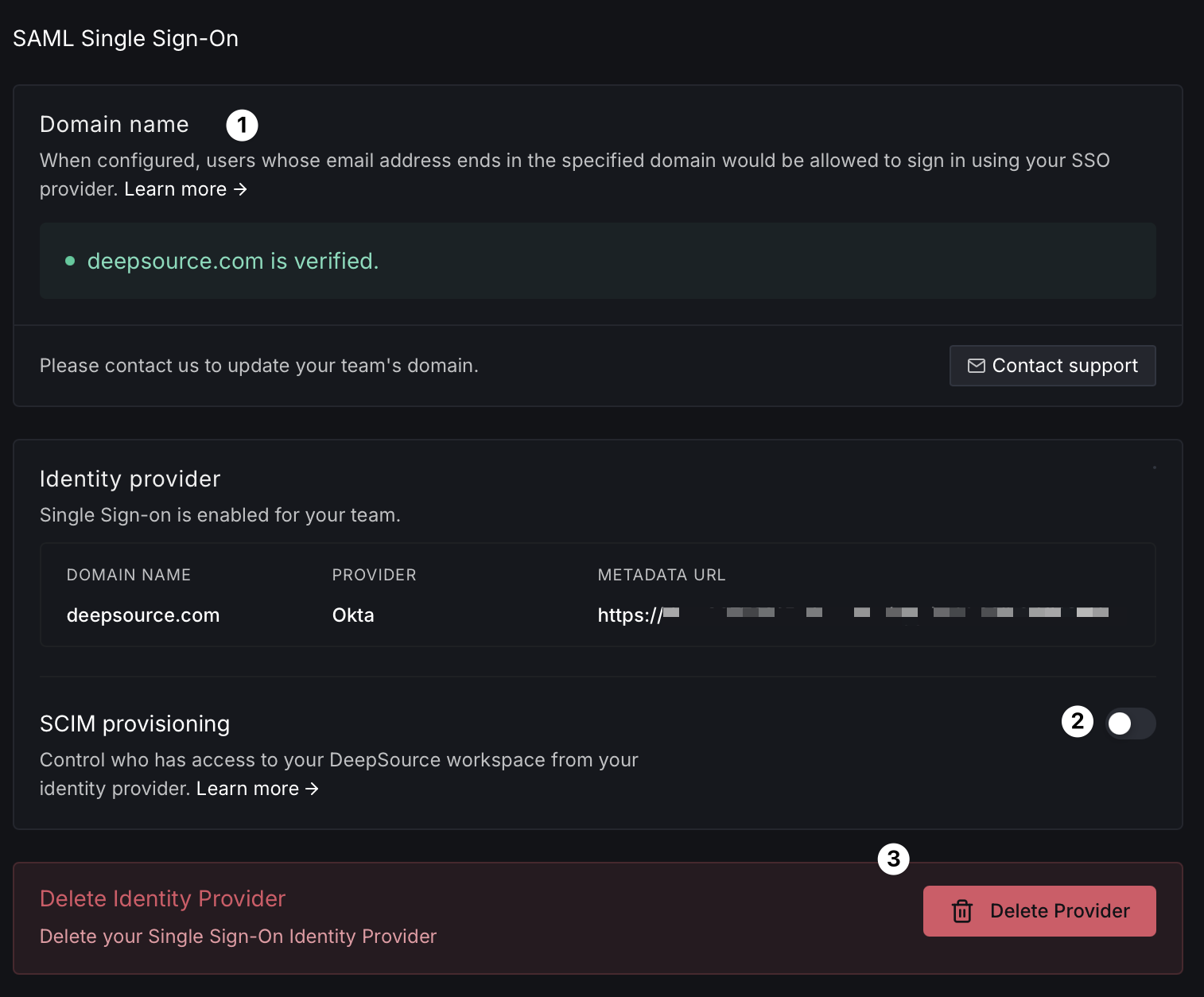
- Domain name [1] — Verify ownership of your organization's email domain. Users whose email address ends in the specified domain will be allowed to sign in using your SSO provider. Click Contact support to update your team's domain.
- SCIM provisioning [2] — Toggle SCIM to control who has access to your DeepSource workspace from your identity provider.
- Delete Identity Provider [3] — Remove the SSO configuration if you need to reconfigure or disable it.
The Identity provider section shows your configured provider (e.g., Okta), domain name, and metadata URL.